
More information about exporting the service archive can be found on IBM’s website Service Exporting Project.
- Select the Service button to the right of the GET Method. The Select z/OS Connect EE Service window will display.

Figure 274. GET Method - In the Select z/OS Connect EE Service window select the Workspace button. The Import z/OS Connect EE Services window will display.
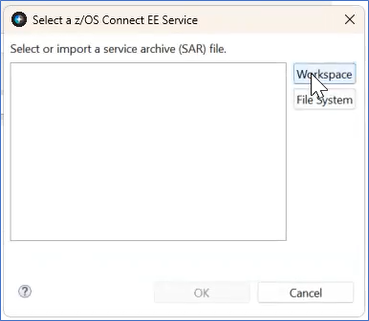
Figure 275. Select zOS Connect EE Service window - In the Import z/OS Connect EE Services window:
- Expand the CATLGAPI folder.
- Select the CATLG.sar file.
- Select the OK button. The Import z/OS Connect EE Services window will close. The Import Services window will display.

Figure 276. Import z/OS Connect EE Services window
- In the Import Services window the Service name and description display. Select the OK button. The Import Services window will close. The Select z/OS Connect EE Service window displays the CATLG.sar file is selected.
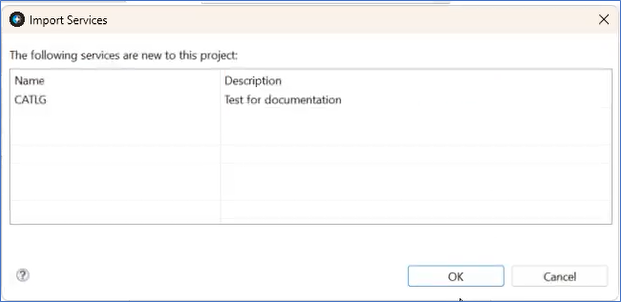
Figure 277. Import Services window - In the z/OS Connect EE Service window select the OK button. The window will close. The GET service, CATLG, is mapped to the GET Method.

Figure 278. GET Service mapped