- The Service Project Editor: Definition tab for the CATLG Service will display. In the Program field, enter Program name DK1API01.
- Select the Create Service Interface button in the Define Request and Response Service Interfaces section The Create Service Interface window will display.
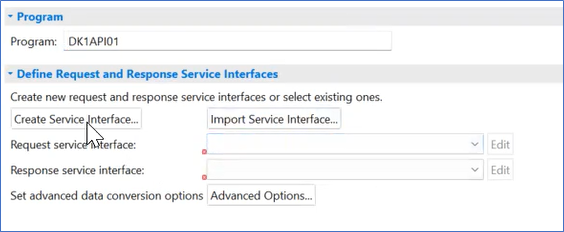
Figure 256. Create Service Interface Button - In the Service Interface Name enter CATLG Select the OK button. The Create Service Interface window window will close. A new tab for CATLG will display in the Service Interface Editor.
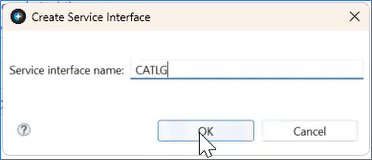
Figure 257. Create Service Interface window - Right-click to select the Container1 > Edit Container. The Edit Container window will display.
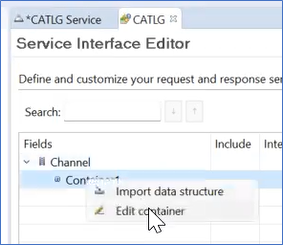
Figure 258. CATLG Edit Container - Enter DK1APIC1-Con in the Container name field. Select the OK button. The Edit Container window will close.
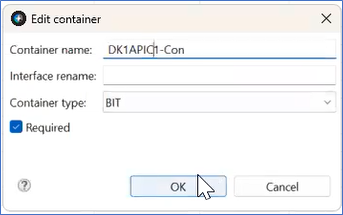
Figure 259. Edit Container Window - In the Service Interface Editor, right-click to select DK1APIC1-Con > Import Data Structure. The Import Window will display.
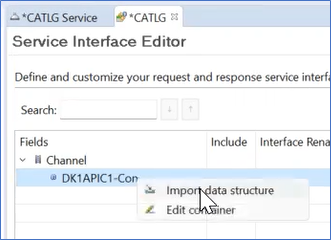
Figure 260. Import data structure - In the Import Window
- The Import from field is automatically populated with z/OS system.
- The File type field is COBOL data structures only.
- Select the Source PDS.
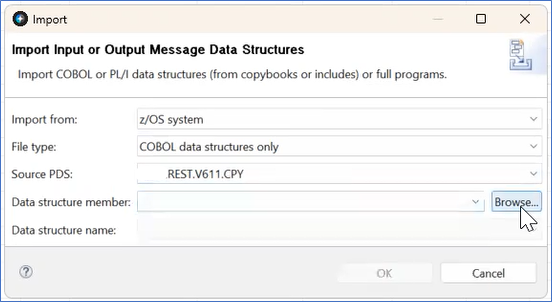
Figure 261. Import Window - Select the Browse button. The Import Application Data Structure Source window displays.
- Enter the Data Set Name or pattern.
- Expand the Data Set Name to display the copybooks.
- Select the CATLG copybook.

Figure 262. Import Application Data Structure Source window - Select the Finish button. The Import window will be populated with the Data Structure member and the Data Structure name.
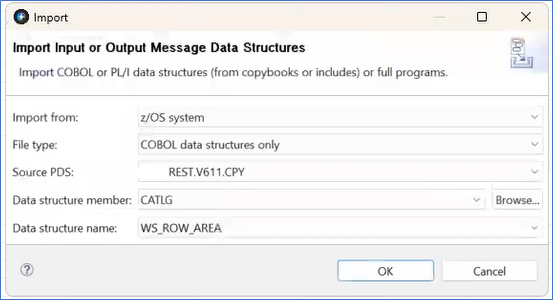
Figure 263. Import Window populated - Select the OK button. The Import window will close.
- On the Service Interface Editor, expand DK1APIC1-Con to display the whole copybook. The WS_ROW_HEADER shows the RESTConnector specific information for the copybook. The WS_ROW_DATA is the related table data.
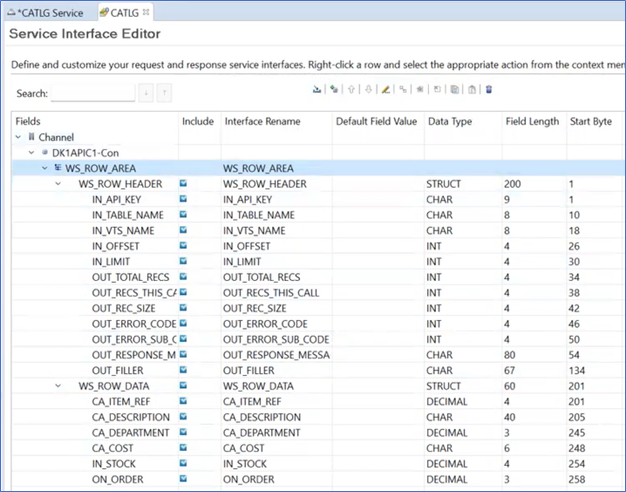
Figure 264. DK1APIC1-Con Expanded