
Use the single copybook, CATLG, to map the request. One request will be made, so it will be based on the Product Description field. The Product Description will return multiple records. The table EXMPCATA uses an alternate index using the Product Description as the key.
- In the API Editor select the Mapping button. Select Open Both Mappings. The Request and Response tabs will display.
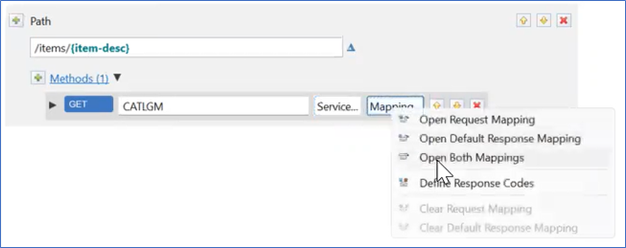
Figure 326. CATLGM Open both mappings - Select the Request tab.
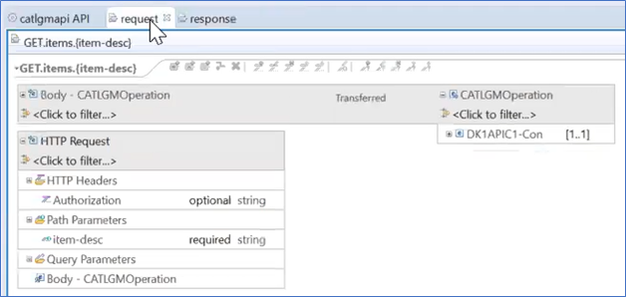
Figure 327. Request and Response Mapping - Expand DK1APIC1-Con to display the whole copybook.
- Select the IN_API_KEY field in the copybook.
- Right-click to select Add Assign transform.
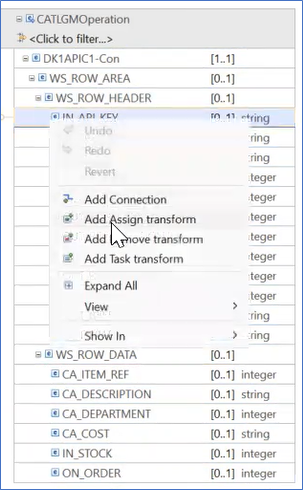
Figure 328. Add Assign Transform - In the Properties Panel enter the value API002. A box displays next to the field marking it as Assigned.
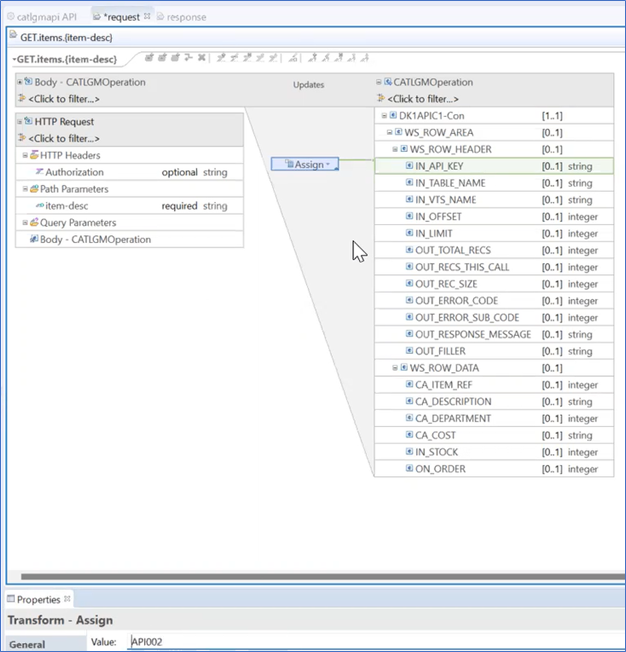
Figure 329. Assign IN_API_KEY
- Right-click to select Add Assign transform.
- Select the IN_TABLE_NAME field in the copybook.
- Right-click to select Add Assign transform.
- In the Properties Panel enter the table name with an alternate index . A box displays next to the field marking it as Assigned.
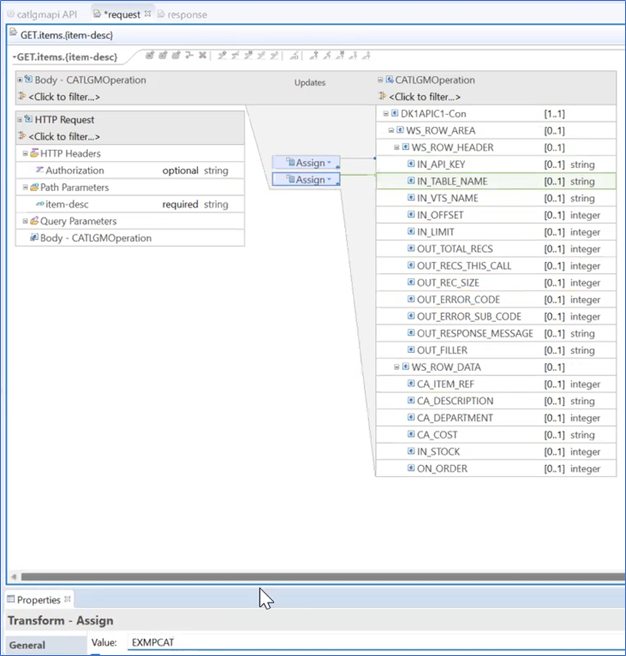
Figure 330. Assign IN_TABLE_NAME
- Select the IN_VTS_NAME field in the copybook.
- Right-click to select Add Assign transform.
- In the Properties Window enter the name of the VTS-TSR, VTS2. A box displays next to the field marking it as Assigned.
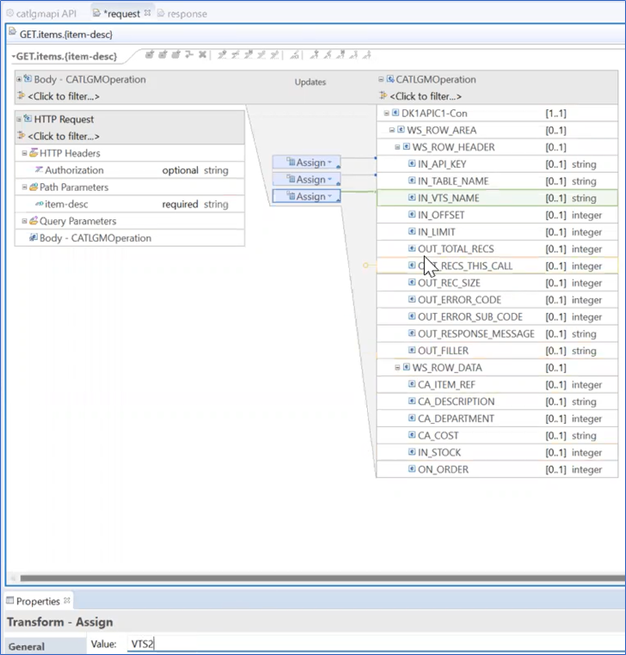
Figure 331. Assign VTS Name
- Select the following fields in the WS_ROW_HEADER section:
- OUT_TOTAL_RECS
- OUT_RECS_THIS_CALL
- OUT_REC_SIZE
- OUT_ERROR_CODE
- OUT_ERROR_SUB_CODE
- OUT_RESPONSE_MESSAGE
- OUT_FILLER
- Right-click to select Add Remove Transform. A box displays next to the field marking it as Removed.
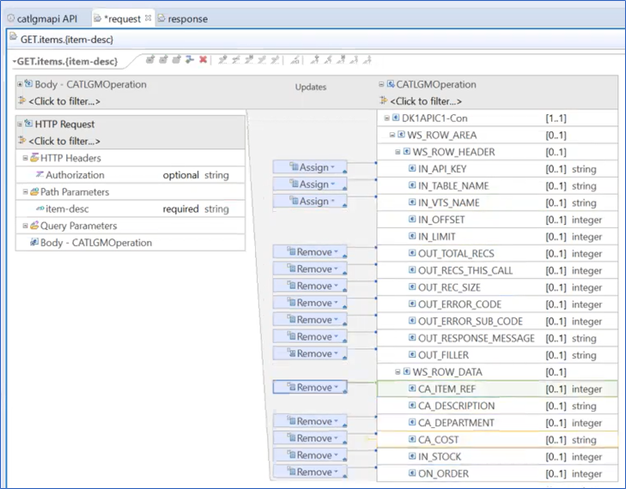
Figure 332. Request Add Remove Transform - Select the following fields associated with the request in the WS_ROW_DATA section:
- CA_ITEM_REF
- CA_DEPARTMENT
- CA_COST
- CA_STOCK
- IN_STOCK
- ON_ORDER
- Select Add Remove Transform. A box displays next to each field marking it as Removed.
- In the HTTP Request section, select item-desc listed as a Path Parameter. Drag it to the field in the WS_ROW_DATA section associated with the request, CA_DESCRIPTION. A box displays Move between the Path Parameter and the Request field.
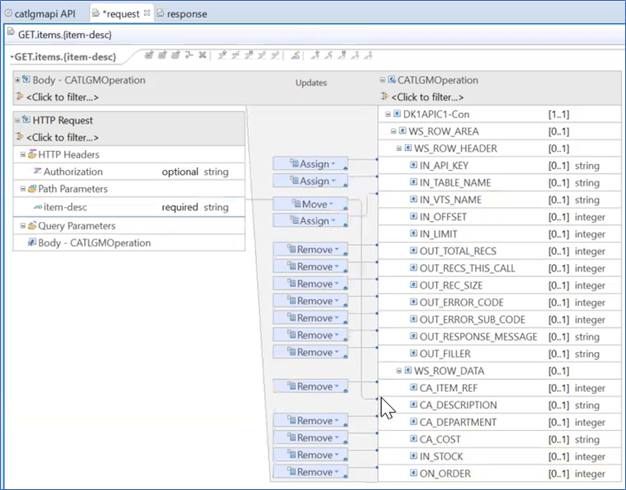
Figure 333. Path Parameter item-desc - Define the Query Parameters:
- Right-click to select the Query Parameters field in the HTTP Request section.
- Select Add Query Parameter. The Add Query Parameter Window will display.
- Enter LIMIT in the Parameter Name field.
- Select Integer for the Parameter type.
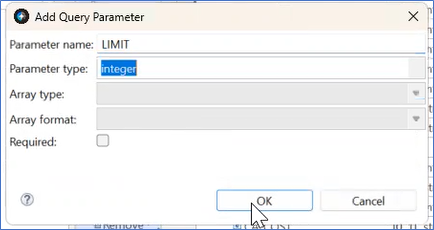
Figure 334. LIMIT Query Parameter - Select the OK button. The Add Query Parameter window will close.
- Repeat steps 12a through 12e for the OFFSET query Parameter name.
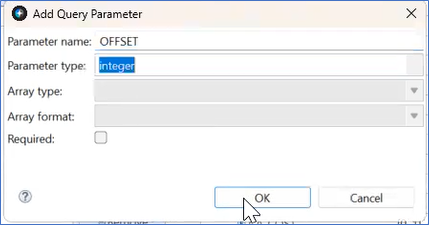
Figure 335. OFFSET Query Parameter
- Select the LIMIT Query Parameter and drag it to the IN_LIMIT field on the CATLGMOperation.
- Select the OFFSET Query Parameter and drag it to the IN_OFFSET field on the CATLGMOperation.
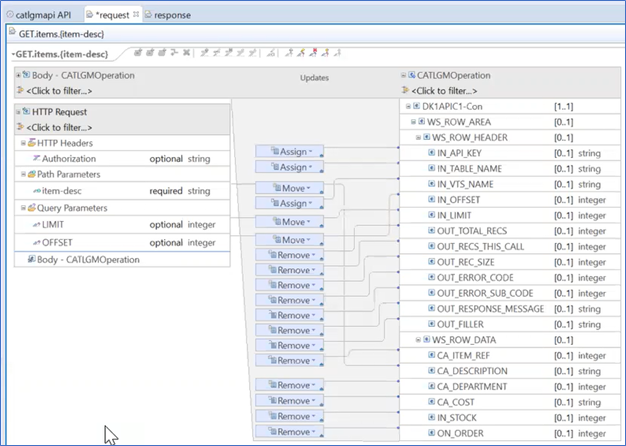
Figure 336. Query Parameters assigned
Note:
The IN_TABLE_NAME and IN_VTS_NAME fields can also be supplied as query parameters.