
The following steps create an operation to GET an item from the EXMPCAT table. For additional information refer to IBM z/OS Connect topic regarding Create an Operation to Inquire about an item.
- Select the Mapping button > Open Both Mappings next to the GET Method Service button.
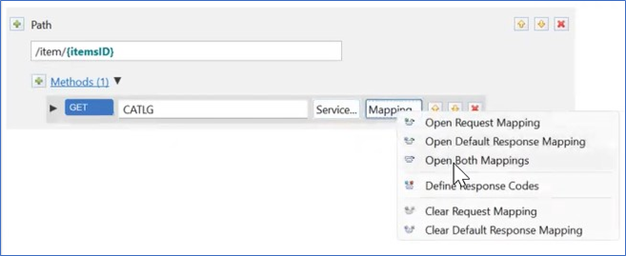
Figure 279. Open Both Mappings - A request tab and response tab will display next to the catlgapi API Editor tab. Select the request tab.
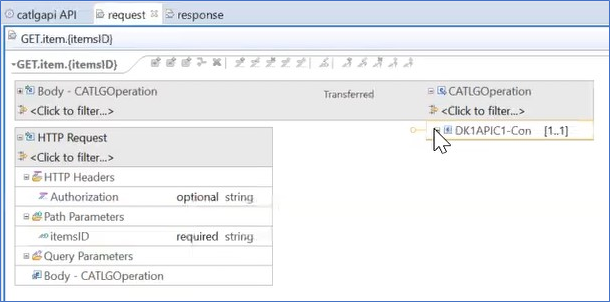
Figure 280. Request and Response Tabs - Expand the DK1APIC1-Con to display the whole copybook.
- This step will assign the API Key. Right-click to select the IN_API_KEY field in the copybook.
- Select Add Assign transform.
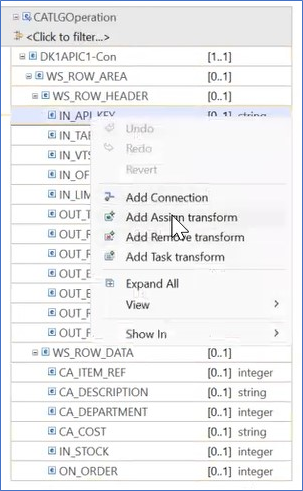
Figure 281. Add Assign Transform - In the Properties Panel enter the value API001. A box displays next to the field IN_API_KEY marking it as Assigned.
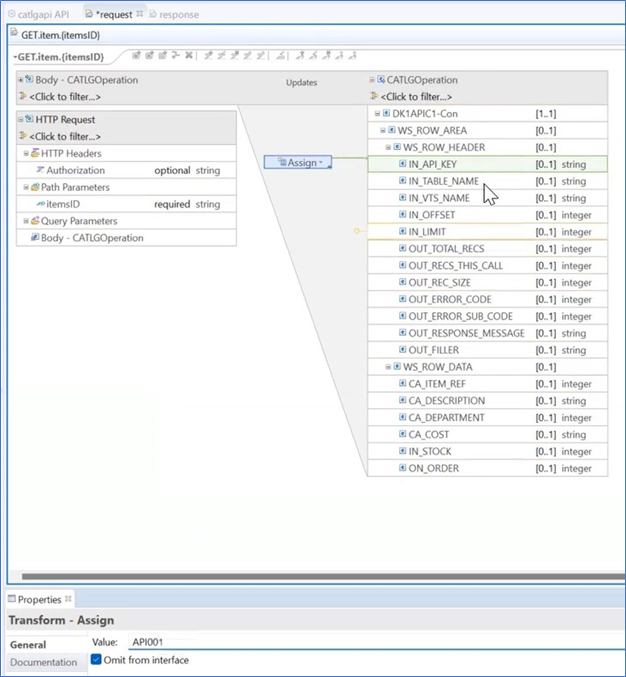
Figure 282. Assign IN_API_KEY
- Select Add Assign transform.
- This step will assign the table name. Right-click to select the IN_TABLE_NAME field in the copybook.
- Select Add Assign transform.
- In the Properties Panel enter the table name EXMPCAT. A box displays next to the field marking it as Assigned.
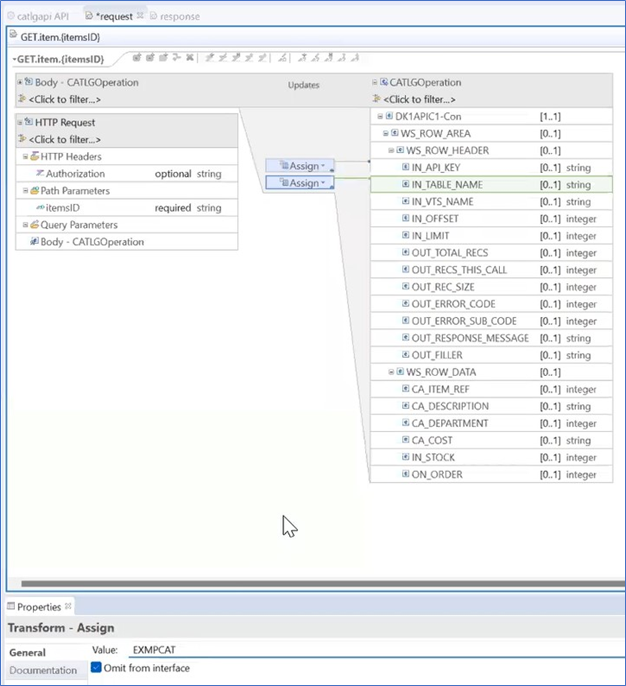
Figure 283. Assign Table Name
- This step will assign the VTS. Right-click to select the IN_VTS_NAME field in the copybook.
Note:If using a local TSR, this field can be ignored.
- Select Add Assign transform.
- In the Properties panel enter the name of the VTS-TSR. A box displays next to the field marking it as Assigned.
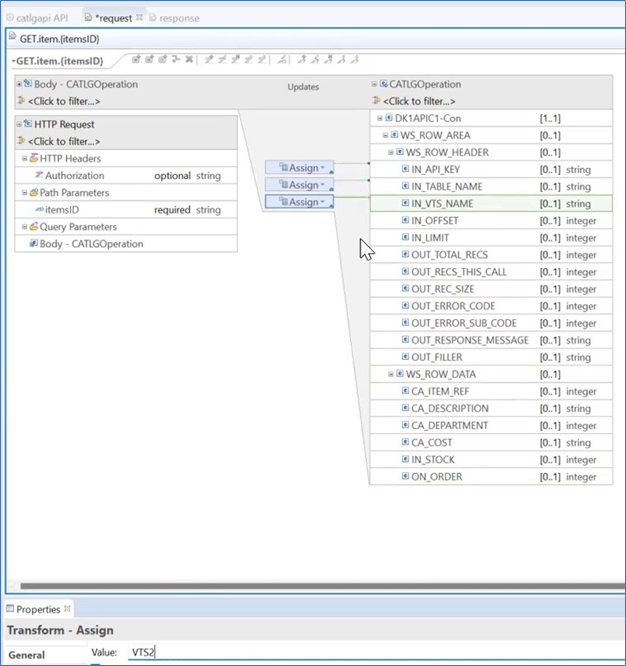
Figure 284. Assign VTS Name
- Select the following fields in the WS_ROW_HEADER section:
- IN_OFFSET
- IN_LIMIT
- OUT_TOTAL_RECS
- OUT_RECS_THIS_CALL
- OUT_REC_SIZE
- OUT_ERROR_CODE
- OUT_ERROR_SUB_CODE
- OUT_RESPONSE_MESSAGE
- OUT_FILLER
- Right click to select Add Remove Transform. A box displays next to the field marking it as Removed.
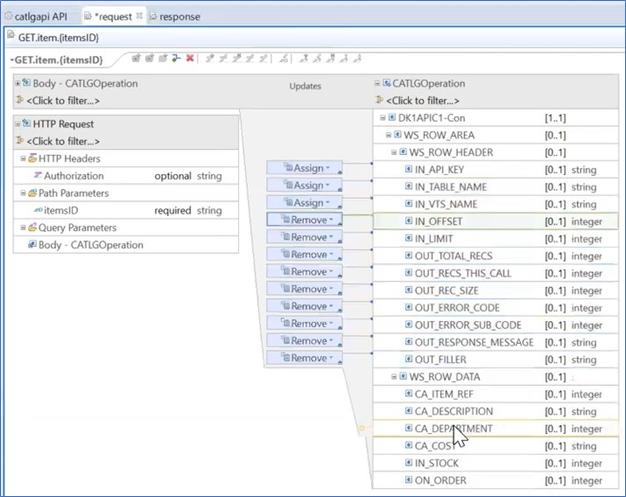
Figure 285. Add Remove Transform - Select the following fields associated with the request in the WS_ROW_DATA section:
- CA_DESCRIPTION
- CA_DEPARTMENT
- CA_COST
- CA_STOCK
- IN_STOCK
- ON_ORDER
- Select Add Remove Transform. A box displays next to each field marking it as Removed.
- In the HTTP Request section, select the itemsID listed as a Path Parameter and drag it to the CA_ITEM_REF field in the WS_ROW_DATA section. A box displays Move between the Path Parameter and the CA_ITEM_REF Request field.
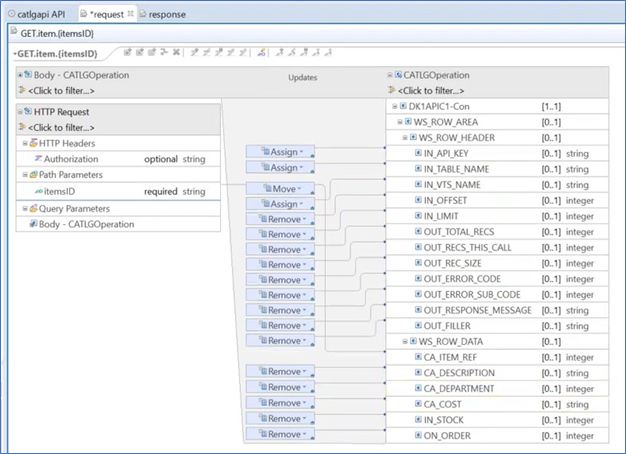
Figure 286. Request Mapping
Note:
The IN_TABLE_NAME and IN_VTS_NAME fields can also be supplied as query parameters.