
Using the Service Archive (.sar) file for the service: create, export and deploy the API Project.
Instructions to create a new z/OS API Project can be found on IBM’s website at Invoke CICS Catalog Manager Services
- Select File > New > z/OS Connect EE API Project. The New Project window will display.
- In the New Project window enter the following information:
- The Project name is CATLGAPI.
- the API Name will populate with catlgapi. It is an editable field.
- The Base Path will populate with /catlgapi. It is an editable field.
- Enter an optional description.
- Select the Finish button. The New Project window will close and the API Editor will display.
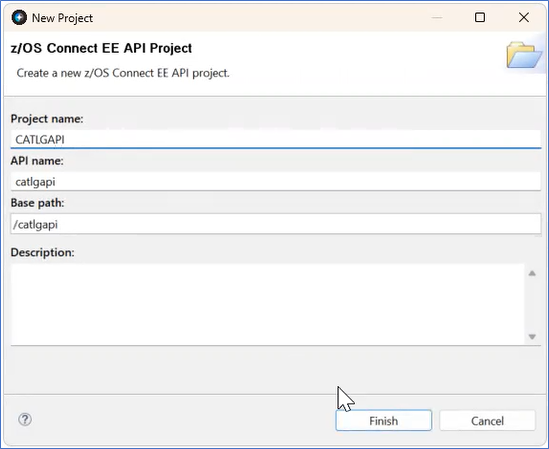
Figure 268. New API Project
- In the API Editor, remove the POST, PUT, and DELETE methods by selecting the box with a red X to the right of the Method. GET should be the only remaining Method.
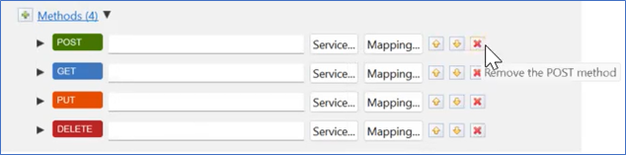
Figure 269. API Editor with Four Methods before removal - In the Path field, change the path name to /items/{itemsID}
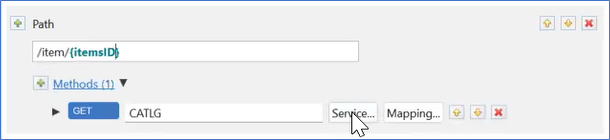
Figure 270. Path equals itemsID - In the Project Explorer panel, right-click to select the CATLG > z/OS Connect EE > Export z/OS Connect EE Service Archive. The Export Service Package window displays.
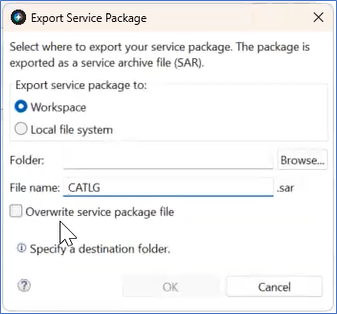
Figure 271. Export Service Package Window - Select the Browse button. The Select Workspace Folder window will display.
- Select CATLGAPI.
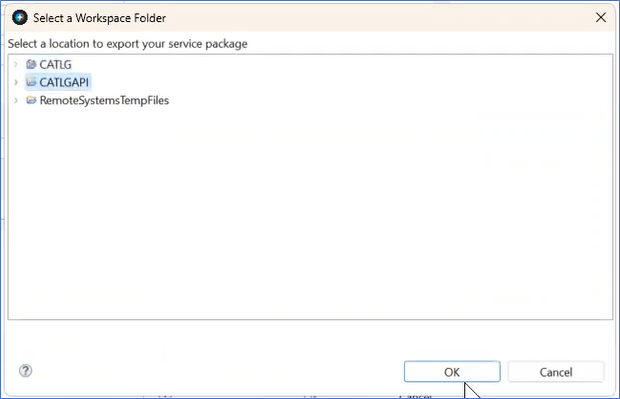
Figure 272. Select a Workspace Folder - Select the OK Button. The Select Workspace Window will close. The Export Service Package window displays the Folder is mapped to /CATLGAPI.
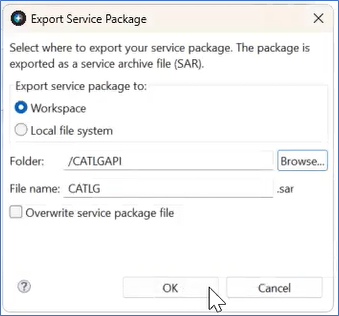
Figure 273. CATLGAPI Export Service Package window - Select the OK button. The Export Service Package window closes. The CATLG.sar file is ready to be exported.
- Select CATLGAPI.